Get started
Quickstart
Get the plan, add tickers, install, sign in, ask: five steps, about five minutes.
Five steps, about five minutes. You end with your agent telling you what the scan found last night.
1. Get Premium+
API and MCP access requires Premium+ subscription at $30/month, or $300/year — all of the benefits in Premium plus API and MCP access. A first subscription starts with 14 days free. Sign in or create an account, start the plan, and you come back here when checkout is done. Already on Premium? The same button switches your subscription in place and shows what is due today before you confirm.
Premium+
$30/month
Billed monthly
- API and MCP access for your agent
- 200 tracked tickers
- Everything in Premium — the ranked screener, every ticker’s track record, watchlist alerts, and tickers we are about to buy
2. Add the tickers you care about
Your watchlist on the site is the list your agent reads for "is there a breakout or reversal pattern forming on my tickers", up to 200 tickers. Open My watch list and add them, or tell your agent once it is connected: "track NVDA and AAPL", "stop tracking TSLA". It adds and removes them for you, and the watchlist on the site changes with it. The scan in step 5 covers the whole market and needs no list.
3. Connect TradingPal to your agent
Pick the one you use. The first three need no terminal.
In ChatGPT
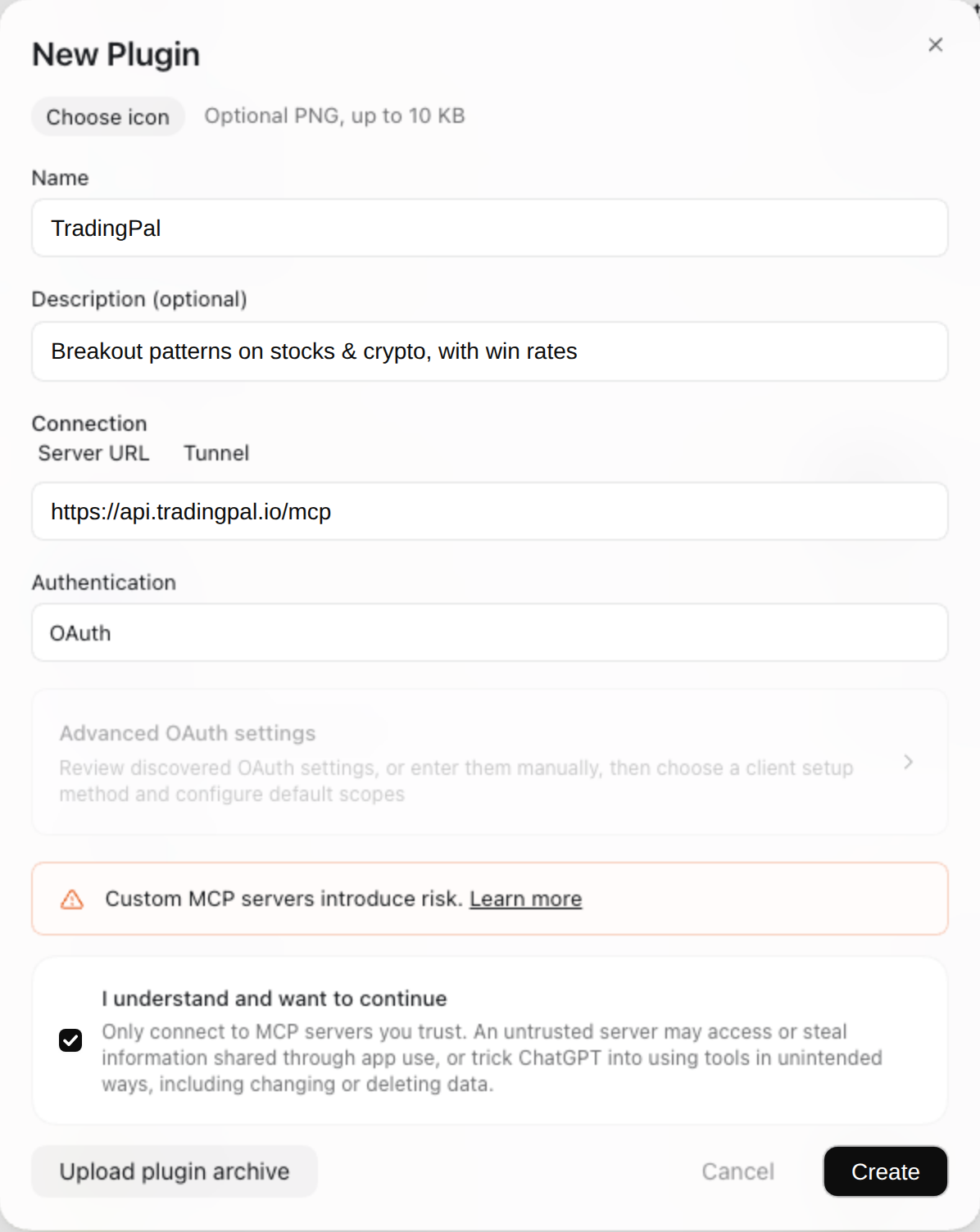
TradingPal is coming to ChatGPT's public plugin directory; until it is listed there, add it as your own plugin. Turn on Developer mode under Settings, Security and login. Open Plugins, click the plus button, choose Create MCP app, and fill the New Plugin dialog in as shown: the name, https://api.tradingpal.io/mcp as the Server URL, Authentication left on OAuth. Tick the box, click Create, and sign in to TradingPal when it asks.

In Claude
Claude (claude.ai, the desktop app and Cowork) is coming to list TradingPal in its connector directory; until then, add it as a custom connector. Open Customize, then Connectors, click Add custom connector, and fill the dialog in as shown: the name, https://api.tradingpal.io/mcp as the MCP server URL, Sign in now, Register automatically. Click Add, then Connect, and sign in to TradingPal in the window that opens.
https://api.tradingpal.io/mcpPaste a prompt
In Claude Code, Codex or Cursor, paste this. The agent reads the reference, adds the TradingPal server and the skill that tells it how to present the data, and asks you to sign in:
Set up TradingPal pattern access for me: fetch https://tradingpal.io/developers/llms.txt and follow it.
Add the MCP server and tell me when I need to sign in.
Then tell me what the scan found last night.
For developers: by hand
The commands and config for each client. The Cursor tab has a one-click install; its JSON goes in ~/.cursor/mcp.json.
claude plugin marketplace add rendude/tradingpal-plugins
claude plugin install tradingpal@tradingpal
4. Sign in when it asks
The first time the agent calls TradingPal, it opens your browser on a TradingPal page. Sign in and approve. In Claude Code, type /mcp, pick tradingpal and choose sign in; in Codex, run codex mcp login tradingpal; in Cursor, click Needs login next to the server. If you added TradingPal in ChatGPT or Claude, you signed in when you created the plugin or connected the connector. The approval shows up on API Keys as a connected app you can revoke any time. There is no key to copy.
5. Ask
What did the scan find last night?The agent calls the scan and answers with the best-ranked setups of the night, each with its trigger, stop and target, the record behind it, and the chart:
The scan ranks these forming setups first this morning:
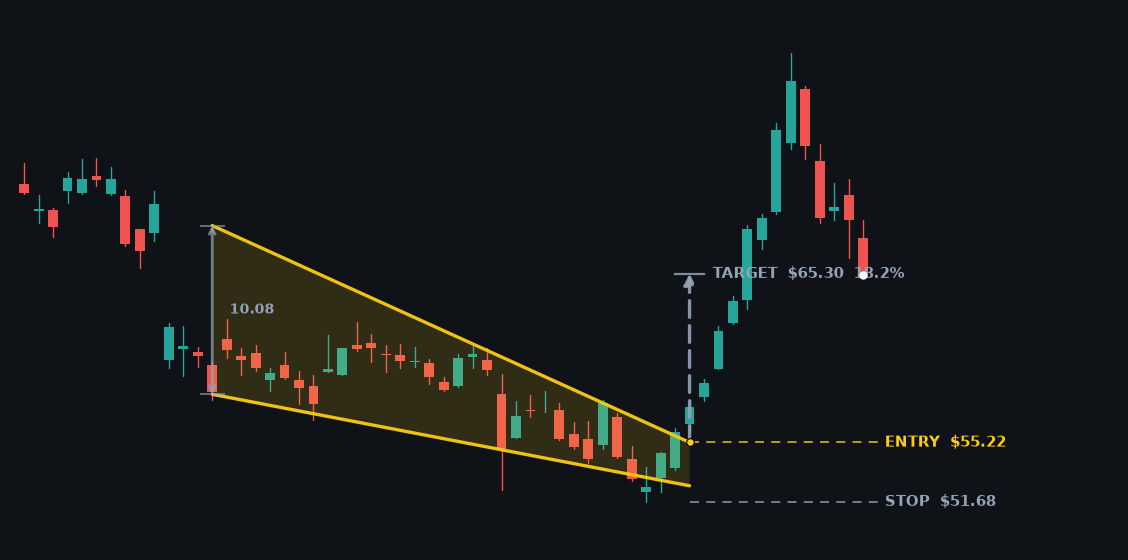
- Aptiv (APTV), falling wedge, bullish. A daily close above $55.22 triggers it; stop $51.68, target $65.30 (+18%). Falling wedges: 10,683 trades since 1987, 56% reached the target, average R +0.52. On APTV: 7 of the last 10 did.
- …
Educational breakout-pattern analysis from TradingPal, not investment advice.
Then ask about your own names, or for a picture:
Is there a breakout or reversal pattern forming on my tickers?
Which setups are within 2% of breaking out?
Only stocks over $10 with RSI under 40, please.
Show me the chart for the APTV falling wedge.
Every chart comes back as an image like the one above. Reading a setup explains every number the agent quotes, and For agents has the rules it follows when it presents them.
For developers: scripts with a key
Code that cannot open a browser uses a key. Create one on API Keys and put it in a .env file your code reads, kept out of version control:
TRADINGPAL_API_KEY=tp_live_…Then the scan is one call:
set -a; source .env; set +a
curl "https://api.tradingpal.io/api/v1/scan?limit=10" \
  -H "Authorization: Bearer $TRADINGPAL_API_KEY"
The API reference has every route; Limits says how often to call.